What a function is
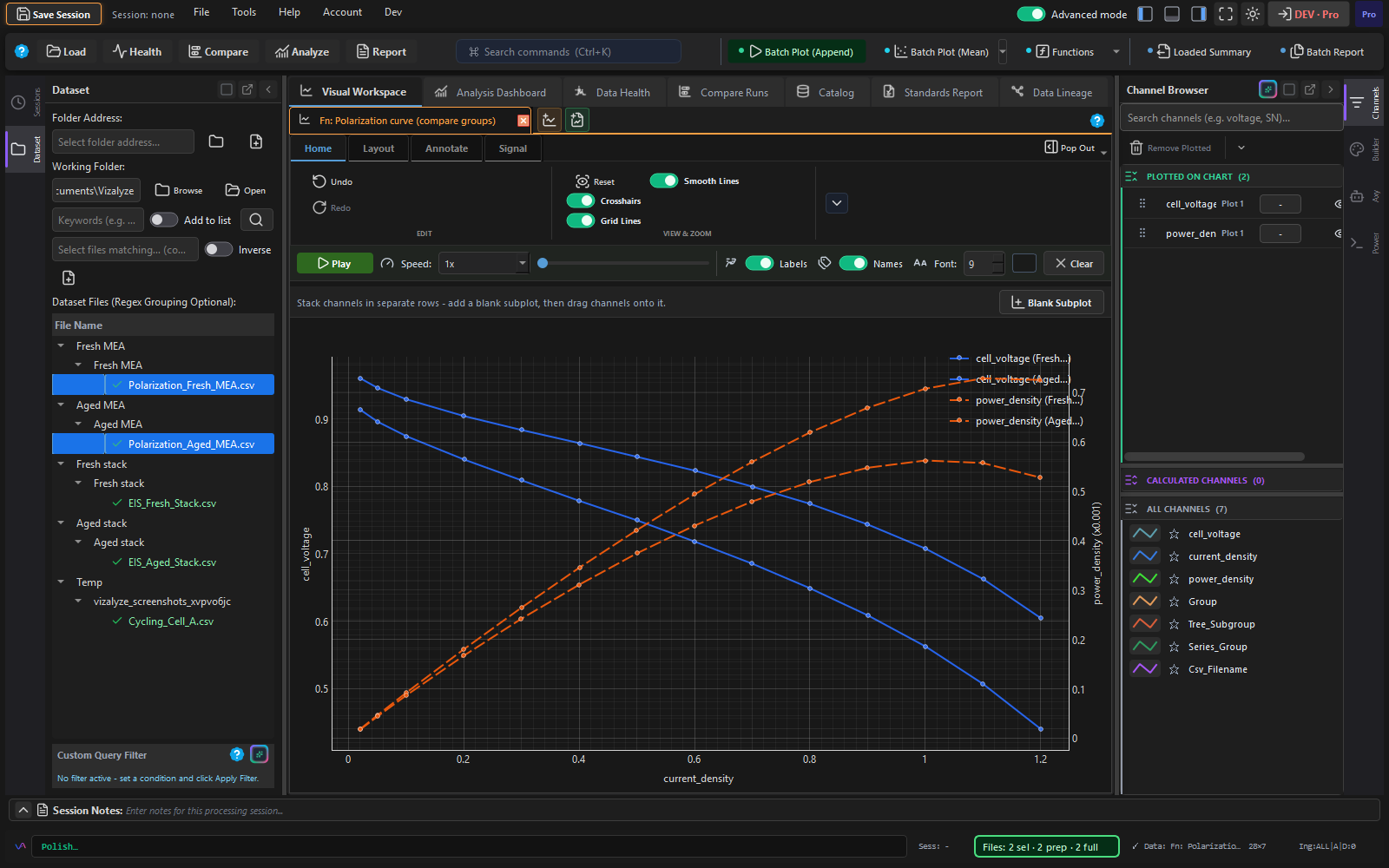
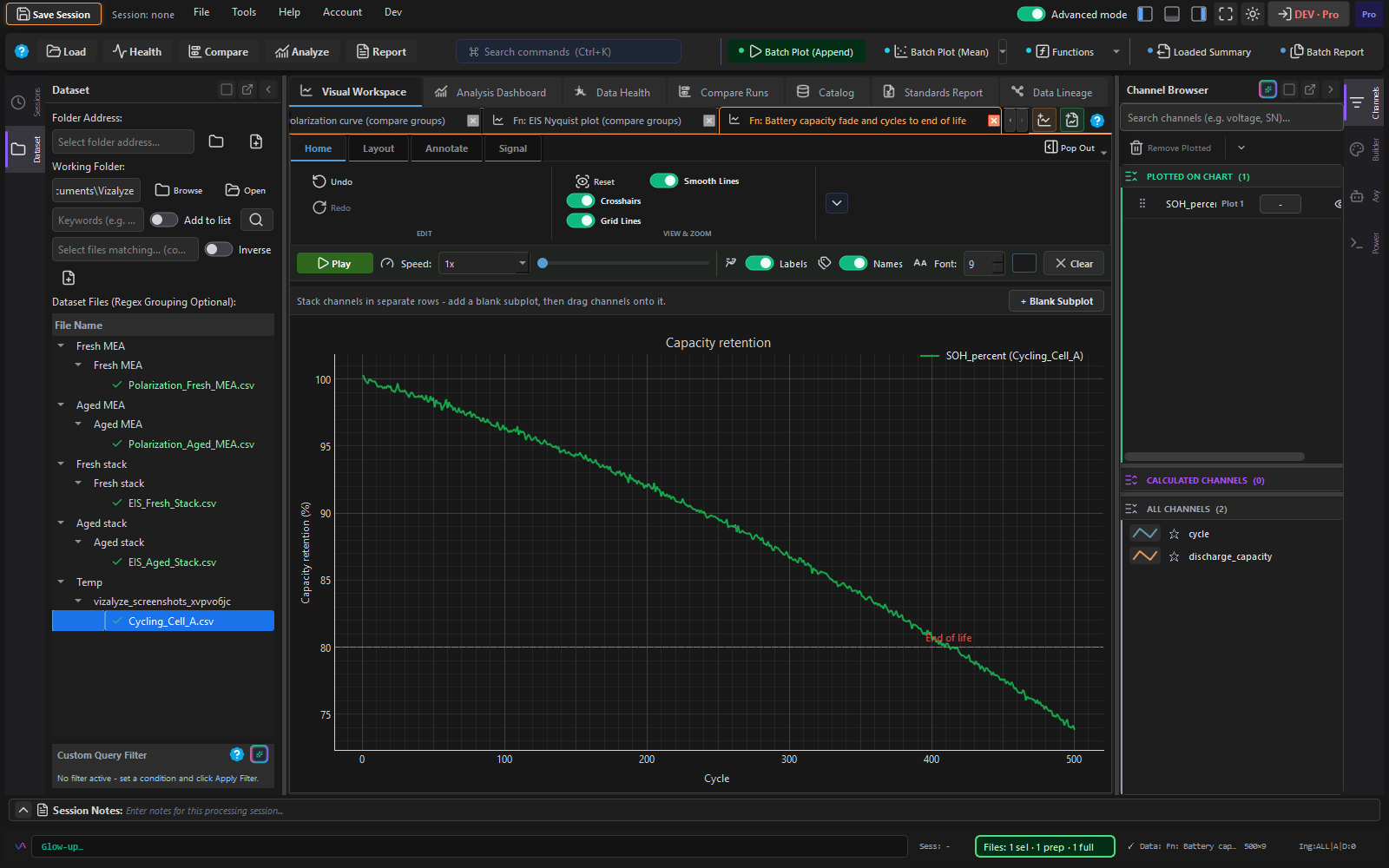
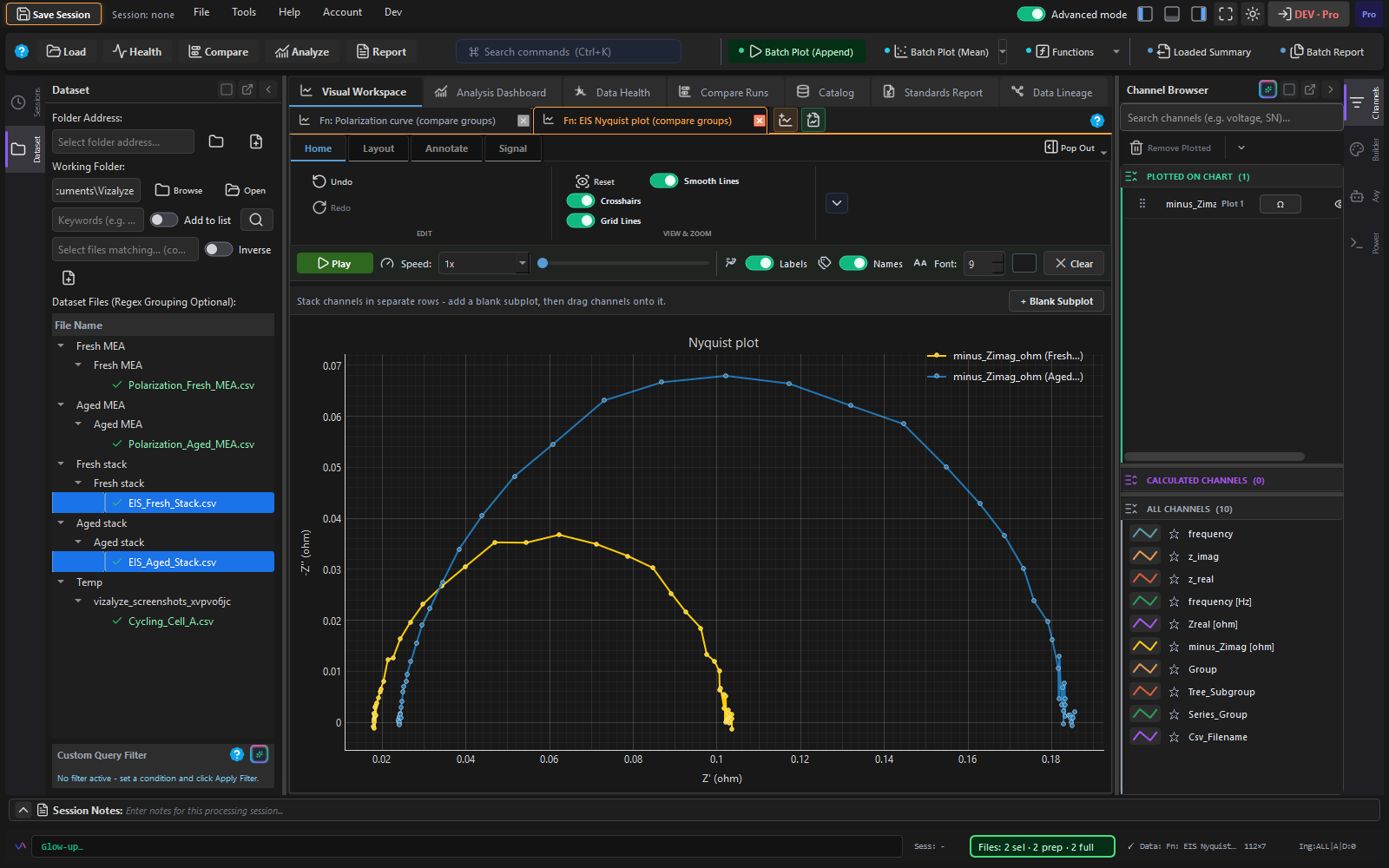
A function is a saved Power Mode script with a run form. Pick the channels and numbers it needs, run it on the files selected in the dataset tree, and the result opens as a chart or a table. Files in the same tree group are drawn as one curve, so groups compare directly on one chart.
- Run on each file, append all files and run once, or run once per group
- Results appear as a chart, a table, exported files, or a short summary
- The run form remembers your last settings for each function
- Functions replay inside workflows, so a saved pipeline can run them again on new data
Running a function
- Select one or more files in the dataset tree
- Open the Functions menu in the ribbon and choose a function
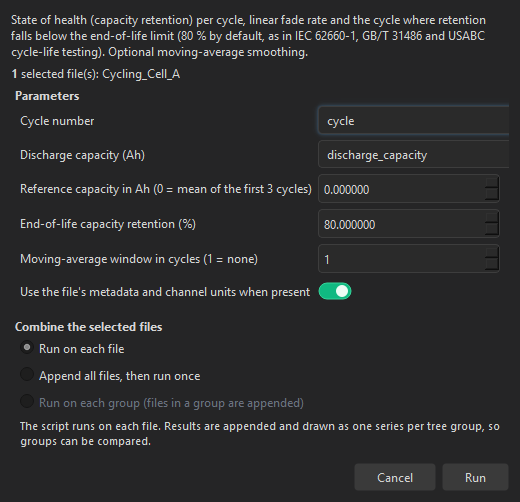
- Pick the channels and set the numbers in the run form
- Press Run - a progress window shows each file and can be cancelled
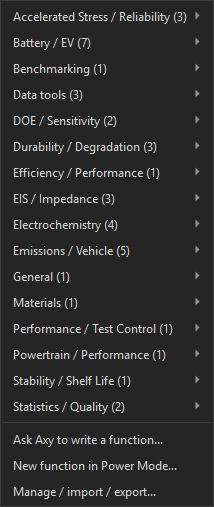
Functions are grouped by domain in the menu. Star the ones you use most to keep them at the top, and recently used functions are listed first.
Your own functions
Any Power Mode script can become a function. Mark the values that should be editable, and the run form is built for you. Save it once, then run it on any dataset.
- Save as Function turns the script in the editor into a library entry
- Make channels into parameters finds column names typed into the script and offers to turn them into channel pickers
- Ask Axy writes a function from a plain description, ready to test and save
- Export a function as a single file to share it, and import files that colleagues send
- Your own functions can be opened, edited and updated at any time
Choosing channels
Every channel picker lists all channels of the loaded files, not only the ones on the active chart, so you can start a function from any table.
- Type into a channel dropdown to find a channel: any part of the name matches, in any case
- Lists that take several channels have a filter box
- Channels that belong to a different loaded file are greyed out with a warning
- In Power Mode, the editor autocomplete suggests every loaded channel too, and a run offers to use the selected files when you pick a channel from another file
File info and units
A function can read the file it runs on, so the same function works on files with different areas, loadings or scan rates without editing the script.
- File header values are read with forgiving names, for example the electrode area, and a missing value tells you which ones exist
- Channel units are available to the script, and a function can convert a channel to the unit it needs
- The library functions have a use file info switch that fills areas, loadings, scan rate, ambient conditions and battery size from the file header
- The same information is available when you test the script in Power Mode
Ask Axy to write one
Describe the analysis in plain words and Axy writes the function. The script is placed in the Power Mode editor, where you can read it, test it and save it.
- Ask from Power Mode, from the Functions menu or from the Axy chat window
- Axy knows the channels of your loaded files, so the function it writes uses your real channel names
- Axy sees channel names, a few header values and units - never your measurement data
Power Mode tools
Power Mode is where functions are written and tested.
- Press F1 or the Help button for a searchable reference of every chart option, function marker and shortcut, and insert a snippet with one click
- Autocomplete explains each option and suggests chart keys, values, colours and your result columns
- Colour names such as red or dark blue work everywhere a colour is accepted
- Charts can have any number of Y axes, and one function can open several chart tabs
- Connected subplots: each subplot can have its own chart type, X axis, range and height. A linked cursor marks the row under the pointer on every subplot, and a Live Cursor Bar shows it as bars, for example 16 cell voltages next to flow or pressure at the point you aim at
- Run and test a function on the data on screen, or test it on the selected files with groups, progress and Cancel
- A Data selector chooses what a script runs on: the selected files with every channel of every one of them, the active chart, or all loaded files, and several scripts can stay open in tabs
- Undo and Redo cover scripts applied by Axy, loaded from a function or from a template
- A running script shows a progress window with elapsed time and a Cancel button
Managing many functions
- The Functions menu lists your favorites first, then recent functions, then one submenu per domain with a count
- In My Functions you can search, mark a favorite, and hide functions you do not use
- Hidden functions leave the menus but can still be run, and Show hidden lists them
- Edit details, rename and duplicate your own functions, and update a function or save it as a new one from Power Mode
Built-in data tools
Split Steps, Merge Timestamp and Export File Statistics are functions that ship with the app, in the Data tools domain. They use the same run form, remembered settings, progress and Cancel as any other function, and you can copy and edit them.
Functions can also save CSV and Excel files, add new tables to the dataset tree and be replayed from workflows with the run function step.
Function library
Vizalyze includes a library of ready-made, standards-based analysis functions for engineering and laboratory work: electrochemistry and impedance, battery and EV testing, emissions and drive cycles, durability and reliability, design of experiments, statistics, materials and stability studies.
Three example functions are free and open: steady-state holds, the polarization curve and the SPC run chart. Read and edit them to learn how functions are built. The rest of the library is included with the domain packs below.
| Function | Domain | Included with |
|---|
Function packs
The analysis functions are included with the five domain packs. Each pack is a one-time purchase that also unlocks that domain's file formats, works on any plan, and is yours to keep. Team and Enterprise include all five. Many functions belong to more than one pack, so owning any one of them unlocks the function.
| Pack | Best for | Functions |
|---|---|---|
| Automotive & EV | Automotive, motorsport and EV testing | |
| Scientific & Simulation | Research, academia and simulation | |
| Lab & Instruments | Laboratory and test and measurement | |
| Big Data & Analytics | Data engineering and analytics | |
| Pharma / Analytical Chemistry | Pharmaceutical and analytical chemistry |
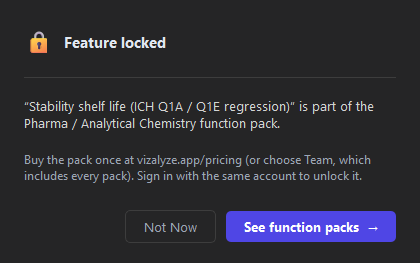
A function from a pack you do not own is marked with a lock in the Functions menu. Choosing it shows which pack unlocks it and links to the pricing page. Sign in with the same account on every machine to unlock what you own.